Trust badges
Trust badges and payment icons for your store
Show trust badges under the buy buttons and in the cart, with your promises on shipping, returns and payment. Each badge has an icon, a title and an optional short text.
Coming soon to the Shopify App Store
See all 13 tools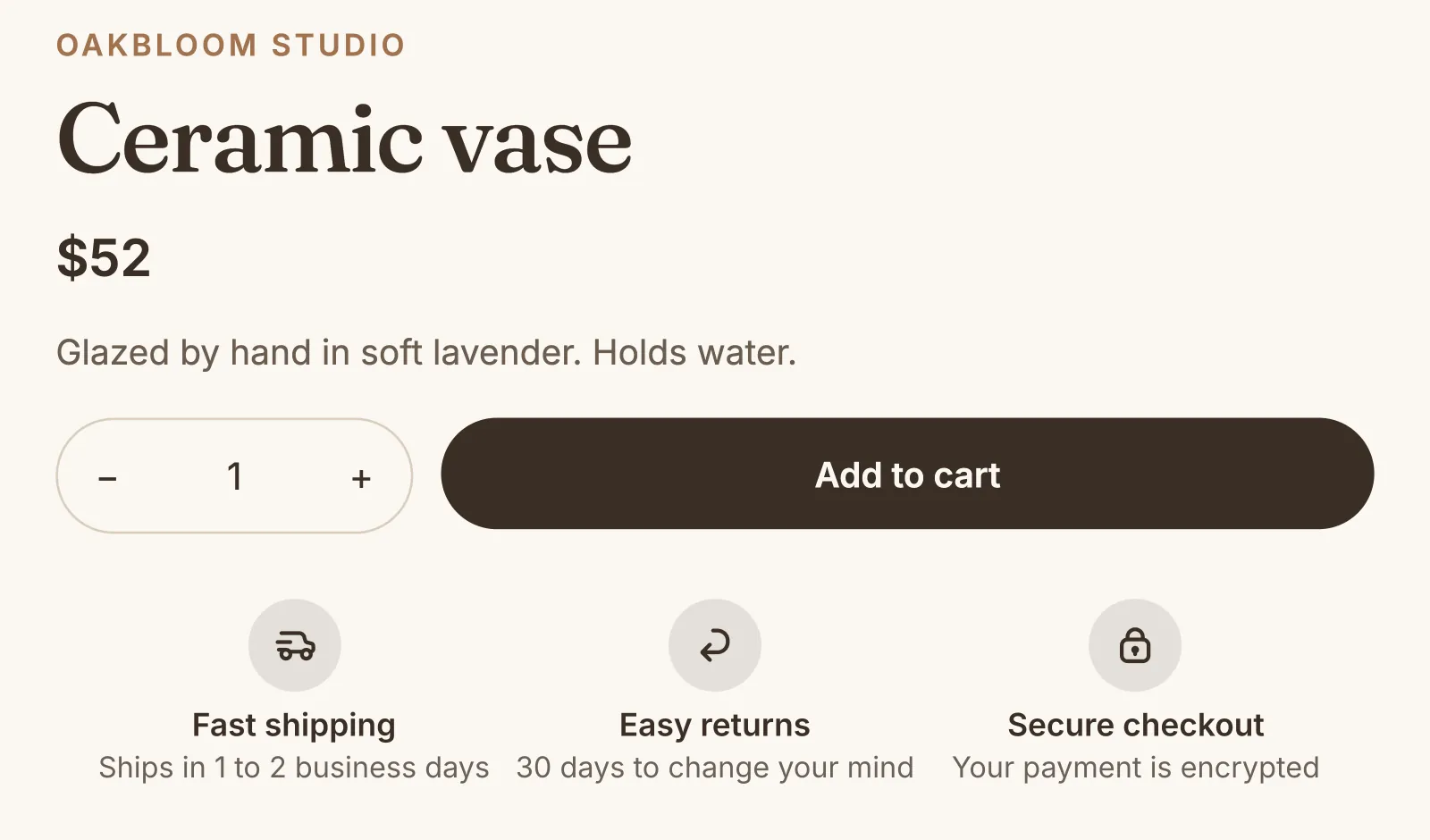
What it does
Product pages and the cart
By themselves, the badges go under the buy buttons, and under the checkout button of the cart page. In most themes, they also show in the cart drawer.
Payment icons of your store
Show the icons of the payment methods that your store accepts, under the badges on product pages and on the cart page.
Ready-made badges and sets
Start from a set such as Essentials, Fast delivery or Handmade, or add one ready-made badge at a time, from tracked delivery to friendly support.
Hundreds of icons, with a search
The trust icons that fit most promises come first, such as a truck, a lock or a return arrow. Show them alone or on a shape, from square to circle, in your theme's text color or a color of your own.
Columns or a list
Put 2 to 5 badges in a row, or one under the other. With 5 in a row, only the titles show.
At checkout on Shopify Plus
On Shopify Plus, add the Trust badges block in the checkout editor, under the payment methods or in another place. Checkout draws the badges with its own icons and colors.
How to start
Turn on Trust badges
Install Super Useful, then turn on Trust badges on the app's Dashboard. Turn on the app embed once, in your theme editor: the Dashboard has a link to it.
Make each promise true
Your badges start as fast shipping, easy returns and secure checkout. Change each title and text to your real shipping time and return period, or start from another set.
Choose where they show
Each place starts on. Pick a layout and a look, and turn off a place that you do not need. Shoppers then see the badges under the buy buttons and the checkout button.
Questions
Can I show different trust badges on product pages and in the cart?
Yes. Each place has its own badges, heading and layout. One click copies the badges of another place, so you can start from them.
Do the badges show in the cart drawer?
In most themes, yes, under the drawer's checkout button. You can turn this off on the Placement tab of the cart. The icons of your payment methods do not show in the drawer.
Do trust badges need Shopify Plus?
No. On all plans, the badges show on product pages and in the cart. Only checkout needs Shopify Plus: there, you add the Trust badges block in the checkout editor.
Can I place the trust badges myself?
Yes. On the Placement tab, choose Only where I add the Trust badges block. Then add the block to a product or cart template in the theme editor.
More answers in the questions and answers.
Also in Super Useful
One app and one subscription. Turn on only the tools that you need.
Trust badges, and 12 more tools
All in one app for your Shopify store.
Coming soon to the Shopify App Store